Start with ssh.
Type a server address or an alias from your SSH config. Connect with a password or a supported SSH key.
 Hey Terminal
iPad + your keyboard
Connect to your server when your computer isn’t with you.
Open a terminal. Type ssh. Pick up the task in front of you, with familiar commands and shortcuts under your fingers.
For iPad and iPhone · iOS 17.6 or later
Keep your hands on the keys
ssh.Type a server address or an alias from your SSH config. Connect with a password or a supported SSH key.
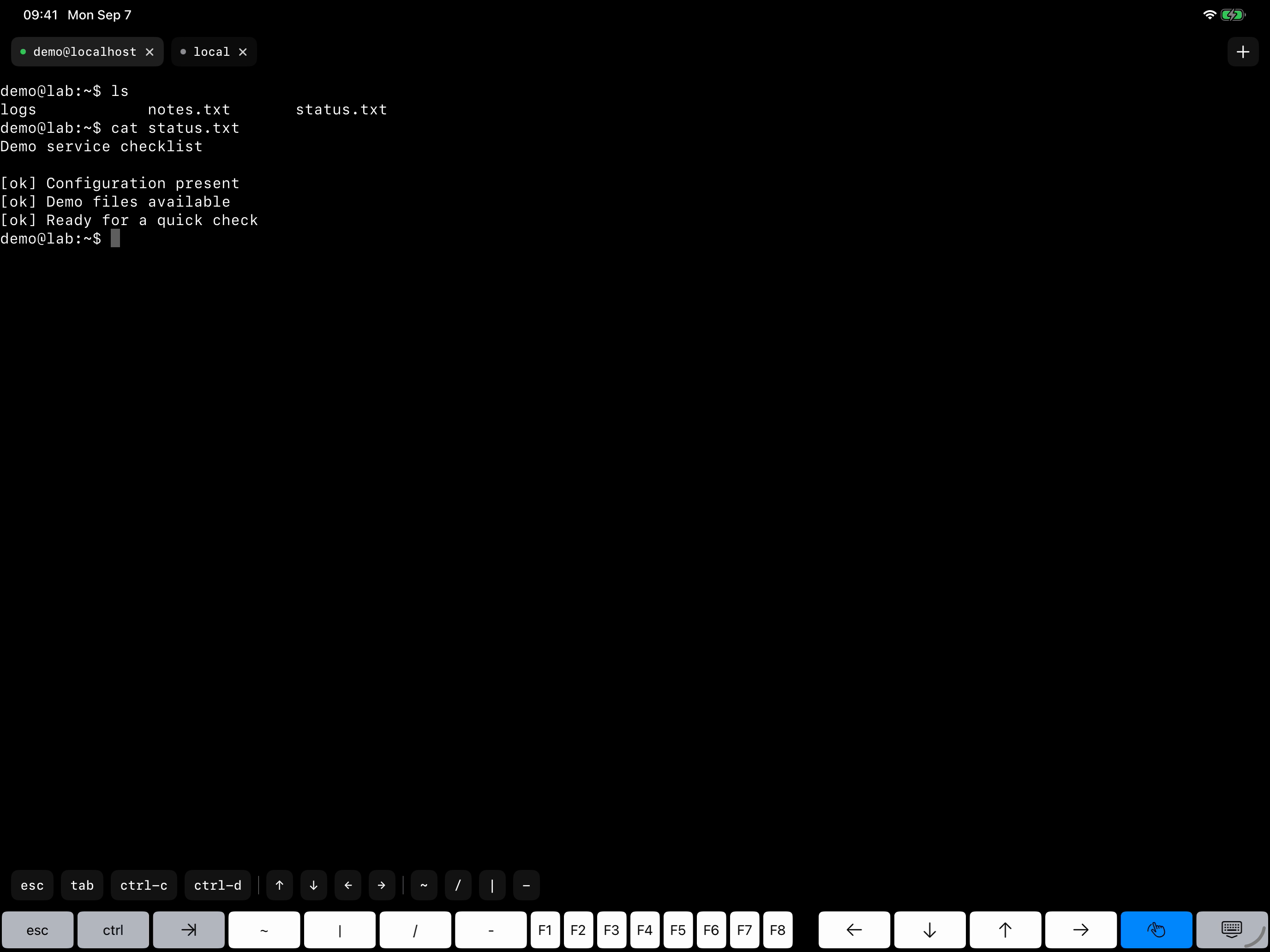
Check a file, inspect output, or work in your server’s terminal tools. The work runs on your server.
Open a tab with ⌘ T. Switch with ⌘ 1–9. Close the current tab with ⌘ W.
From prompt to session
SSH connection, real shell commands,
and a new tab with Command-T.
Recorded in iPad Simulator with keyboard input and an isolated SSH demo server. No production data. Silent video. Watch on YouTube ↗
Start at the local prompt. Type ssh demo to connect to a configured SSH alias. Run ls and cat status.txt on the demo server. Press Command-T to open a local tab, run ls, then select the existing SSH tab to return to its output.
A terminal, close at hand
Generate an Ed25519 key, import a supported private key, and install your public key with ssh-copy-id.
Use built-in commands to manage local files and edit your SSH config before connecting.
Settle into a session on iPad with an external keyboard. On iPhone, handle a short server task when your computer is out of reach.
SSH configuration and keys are stored in the app’s local files. The app remembers a server’s key on the first connection and rejects a changed key on later connections.
Hey Terminal uses Firebase Analytics for usage and connection events. Its custom events record command categories and connection outcomes—not full commands, server addresses, passwords, or key contents. The app can also retrieve a startup message from Google Drive.
Read the privacy policy ↗Hey Terminal